
Luminar Neo review: what changed in Skylum’s AI photo editor
Luminar Neo is Skylum’s AI-focused photo editor for photographers who want faster retouching, easier cleanup tools and creative effects without building a complex Photoshop workflow from scratch. It can work as a standalone editor and, depending on your setup, as part of a broader workflow with tools such as Lightroom or Photoshop.
This updated Luminar Neo review turns the original launch-style article into a practical guide: what Luminar Neo does well, what has changed over time, which AI tools are genuinely useful, and who should consider using it in 2026.

What is Luminar Neo?
Luminar Neo is a photo editing app built around AI-assisted tools. Instead of asking the photographer to manually mask every area or build complex layer stacks, it speeds up common edits such as relighting, sky replacement, portrait retouching, background removal, object cleanup, denoising and sharpening.
That does not mean it replaces photographic judgment. The best results still come from using AI tools lightly and keeping control over exposure, color, contrast and composition. Luminar Neo is strongest when it removes repetitive work, not when it makes every image look obviously automated.
What changed in Luminar Neo in 2026?
Skylum has continued updating Luminar Neo with performance improvements, expanded camera support and more generative editing tools. The official 2026 update notes highlight faster exporting with multiple edits, broader RAW camera compatibility and ongoing improvements around AI-powered cleanup and creative editing.
The practical meaning is simple: Luminar Neo is no longer just a relight-and-sky-replacement app. It has moved closer to an AI-assisted creative editor with tools for erasing distractions, expanding images, swapping elements, improving portraits and speeding up repeatable edits. That makes it more useful, but it also makes restraint more important. A good edit should still feel like your photograph.
Main Luminar Neo features
- Enhance AI: quick global improvement for exposure, contrast and detail.
- Relight AI: adjusts foreground and background light separately when the image has depth.
- Sky AI: replaces skies and helps blend them into the scene.
- Erase and object removal: removes distractions such as dust, wires or small background elements.
- Portrait tools: skin, face and body adjustments for faster portrait retouching.
- Noiseless AI and Supersharp AI: tools for noise reduction and sharpening in difficult files.
- Generative tools: options such as generative erase, swap and expand for more creative edits.
- Plugin workflow: useful when you want to keep Lightroom or Photoshop as the main archive and send selected files to Neo.
Relight AI
Relight AI is one of Luminar Neo’s most recognizable tools. It analyzes the scene and lets you brighten or darken different depth areas more quickly than a traditional local adjustment. It is useful for portraits, travel photos and interiors where the subject is underexposed but the background already looks acceptable.
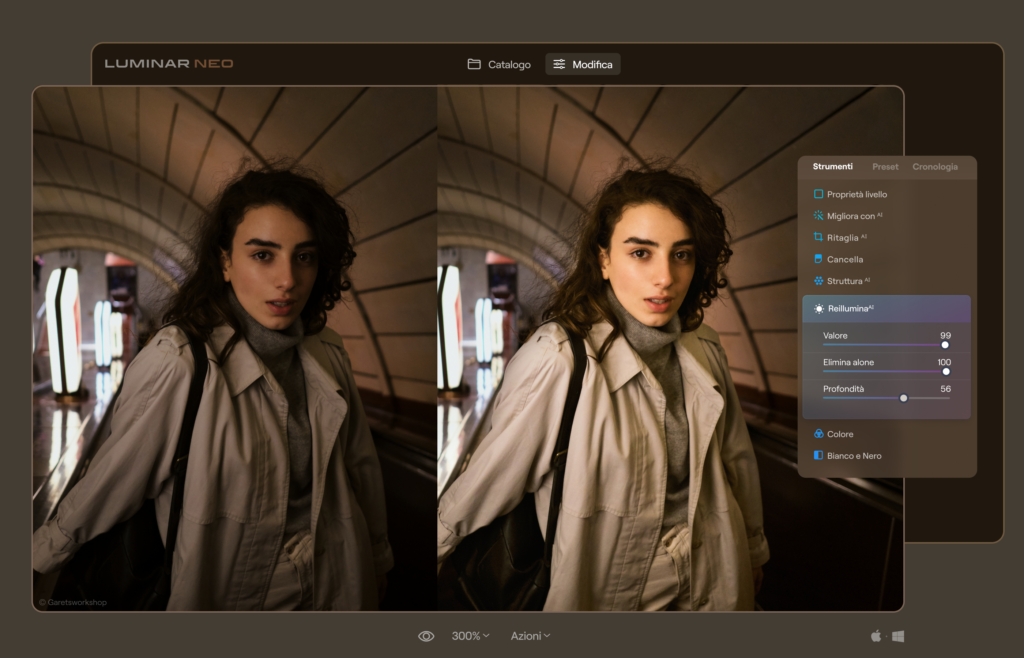
The danger is overuse. If the foreground becomes too bright while the background remains moody, the image can quickly look artificial. For natural results, apply Relight AI first, then reduce the strength until the edit feels believable.
Object removal and cleanup
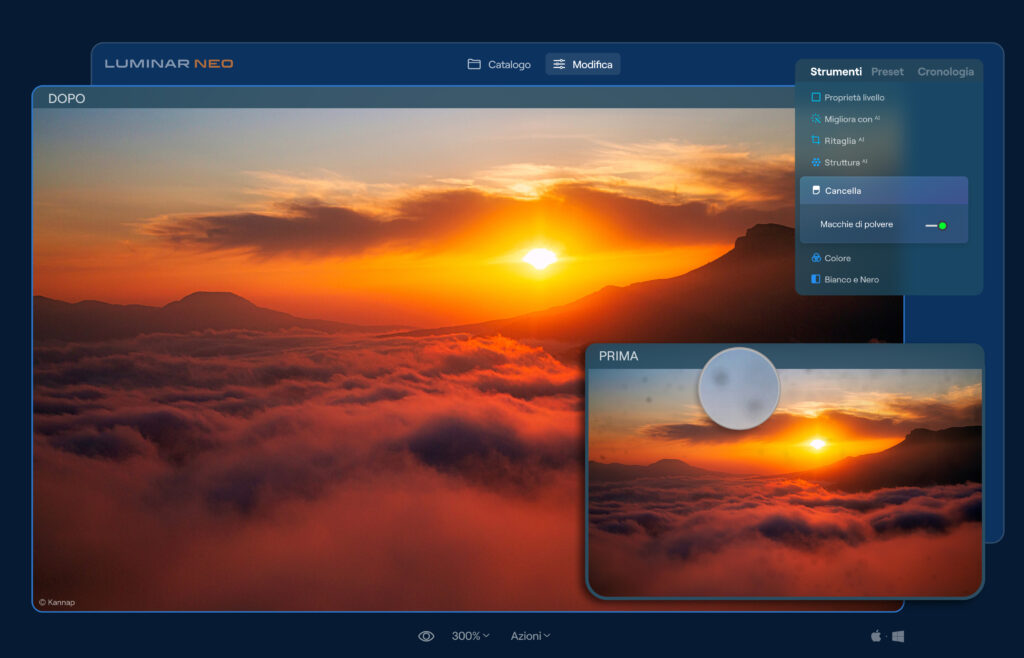
Older versions of this article focused on dust and line removal. That is still relevant, but Luminar Neo has grown into a broader cleanup tool. You can remove small distractions, fix sensor dust, clean background elements and use generative features when a simple clone-style repair is not enough.
Line remover and distraction control
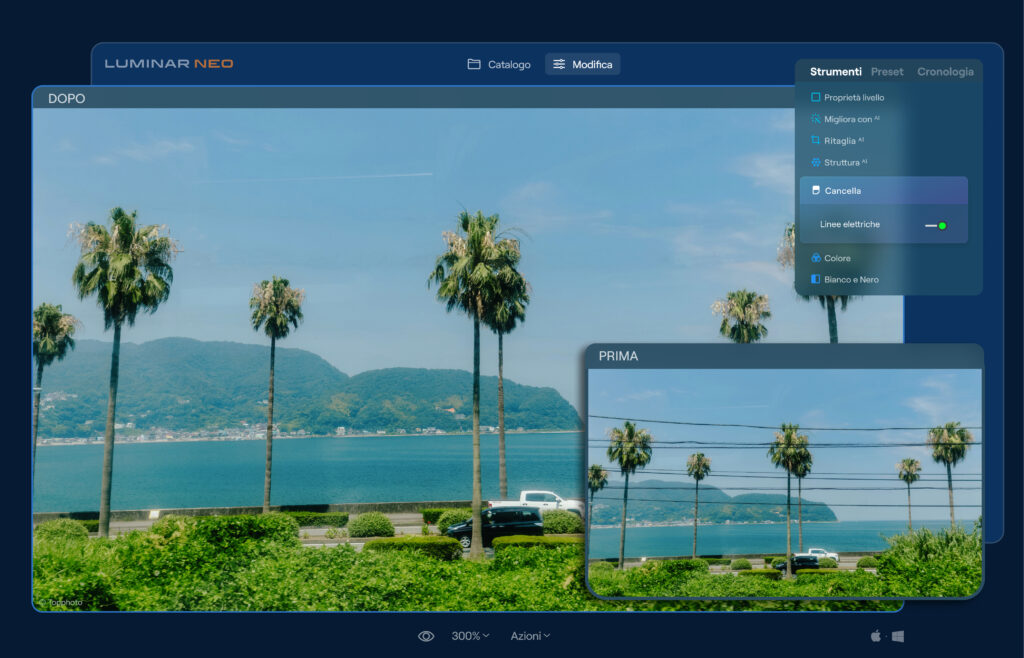
Line removal is especially useful for travel and landscape images where power lines, cables or thin distracting elements cut through the composition. It is not magic: complex backgrounds still need checking. But when it works, it can save a lot of manual retouching time.
Best uses for Luminar Neo
| Use case | Why Neo helps | What to watch |
|---|---|---|
| Travel photography | Fast cleanup, relighting and sky adjustments | Avoid skies that do not match the scene light |
| Portraits | Quick skin, face and background tools | Keep skin texture natural |
| Social media edits | Fast creative looks and quick exports | Do not let presets dominate your style |
| Landscape images | Sky AI, atmosphere, structure and local contrast | Check halos around edges and mountains |
| Old or noisy files | Noiseless AI and sharpening tools can rescue difficult images | Inspect detail at 100 percent before exporting |
Luminar Neo vs Lightroom and Photoshop
| Tool | Best for | Main limit |
|---|---|---|
| Luminar Neo | Fast AI edits, creative looks, portrait cleanup and sky replacement | Less ideal as a deep professional catalog system |
| Lightroom | RAW workflow, catalog management, batch editing and color consistency | Some advanced retouching still needs Photoshop-style tools |
| Photoshop | Detailed compositing, layers, masks and complex retouching | Steeper learning curve and heavier workflow |
If you are building a classic editing workflow, start with my Lightroom tutorial and the guide to the RAW format. For AI-based photo enhancement, you may also like how to improve photos with artificial intelligence.
A simple Luminar Neo workflow
- Start with a RAW file and correct exposure, white balance and basic contrast.
- Use Enhance AI lightly, then reduce the effect if the image starts to look artificial.
- Apply Relight AI only when the subject and background need different treatment.
- Remove small distractions before doing creative color work.
- Use generative tools only when the change supports the story of the image.
- Finish with sharpening and noise reduction at the output size you actually need.
- Export one version for web and keep a higher-quality file for your archive.
Who should try Luminar Neo?
- Good fit: beginners, travel photographers, portrait creators, social media creators and photographers who want quick creative edits.
- Less ideal: photographers who need advanced catalog management, very precise professional retouching or fully manual control over every layer.
- Best advice: use it to speed up repetitive edits, but keep the final image natural and consistent with your style.
Verdict
Luminar Neo is strongest when it acts as a fast creative assistant, not when it replaces your eye. Its AI tools can save time on relighting, cleanup, portrait retouching, denoising, sharpening and creative effects. For photographers who want speed and simplicity, it is worth considering. For large professional archives or complex retouching, Lightroom and Photoshop still make more sense as the core workflow.
